V5 Version 5.0.0.122
Current Version 5.0.0.122
New Features
- Export to Primavera P6 XLSX Format: The export tools were redesigned in V5 and now include much more finer control regarding how you would export information from vPlanner to P6. See below for a detailed review of the new export options.
- Search and Replace: It is now possible to perform search and replace partial text in the task description. You will be able to preview and replace one by one or replace all. You can also search the visible tasks or the entire plan. Note you can only modify the tasks descriptions of the tasks to which you have edit access permissions.
- Filters in the Filter: It is now possible to filter the items in the filter panel (similar to V4). Simply type something in the Text box above the filter columns to filter the list of items that contain your text.
- Workplans: It is now possible to see the workplan due date next to the workplan in all workplan UI items.
- Focused View: Add Predecessors or Successors by Task ID now works in the focused view (right-click menu).
- Longest Paths: The longest path analysis now shows all the longest paths that are of the same length in one search instead cycling through them one by one.
- Failed Commitments Stars: due to popular demand, the stars indicating the number of failed commitments in the Manage view are now back.
- Reports:
- The project name now is included in the PPC and Variances chart title.
- It is now possible to see the number of failed commitments in the detailed variance report.
- It is now possible to see bar labels on the bar chart part of the PPC report. You can control their display from the Bar Settings button on the ribbon.
Bug Fixes:
- Category Deletion: Fixed the error message that shows up when a user tries to delete a category that is assigned to tasks in the project or the site - the error message now notifies the user why deleting the item fails.
- Task Editor: When assigning a date to a milestone at certain times of the day, it caused the assigned date to shift a day. This is now fixed.
- Printing: the task description text no longer grows outside the text area boundary.
- Gantt View- the Gantt chart will no longer reset its contents when the user changes the color by options the same applies to filters when used in the Gantt view.
Exporting to Primavera P6
To access the export tools, click on the vPlanner icon to open the backstage and click on the Export section. The default is that the content of the Manage view will be visible as a preview. Click on the Filter Tasks item on the side menu to switch to the List View. The list will show the tasks that are visible in the manage view.
You can switch to see the tasks in the entire plan, and you can use the filters in the Task List side to narrow down what will be exported.
The supported export format icons at the bottom of the screen will become active when you switch to the List View. Select the P6 Excel Sheet item to open the guided wizard.
Similar to V4, vPlanner will allow you to pick an optional P6 template mapping file, which is an excel sheet that you create from the P6 project you plan to import into. vPlanner will use the template information to map vPlanner attributes to matching P6 columns. If you do not have a template file, you can still do the mapping manually in Excel by changing the column headers (experienced P6 users will find this format familiar as it is a standard way of getting data into a P6 project).
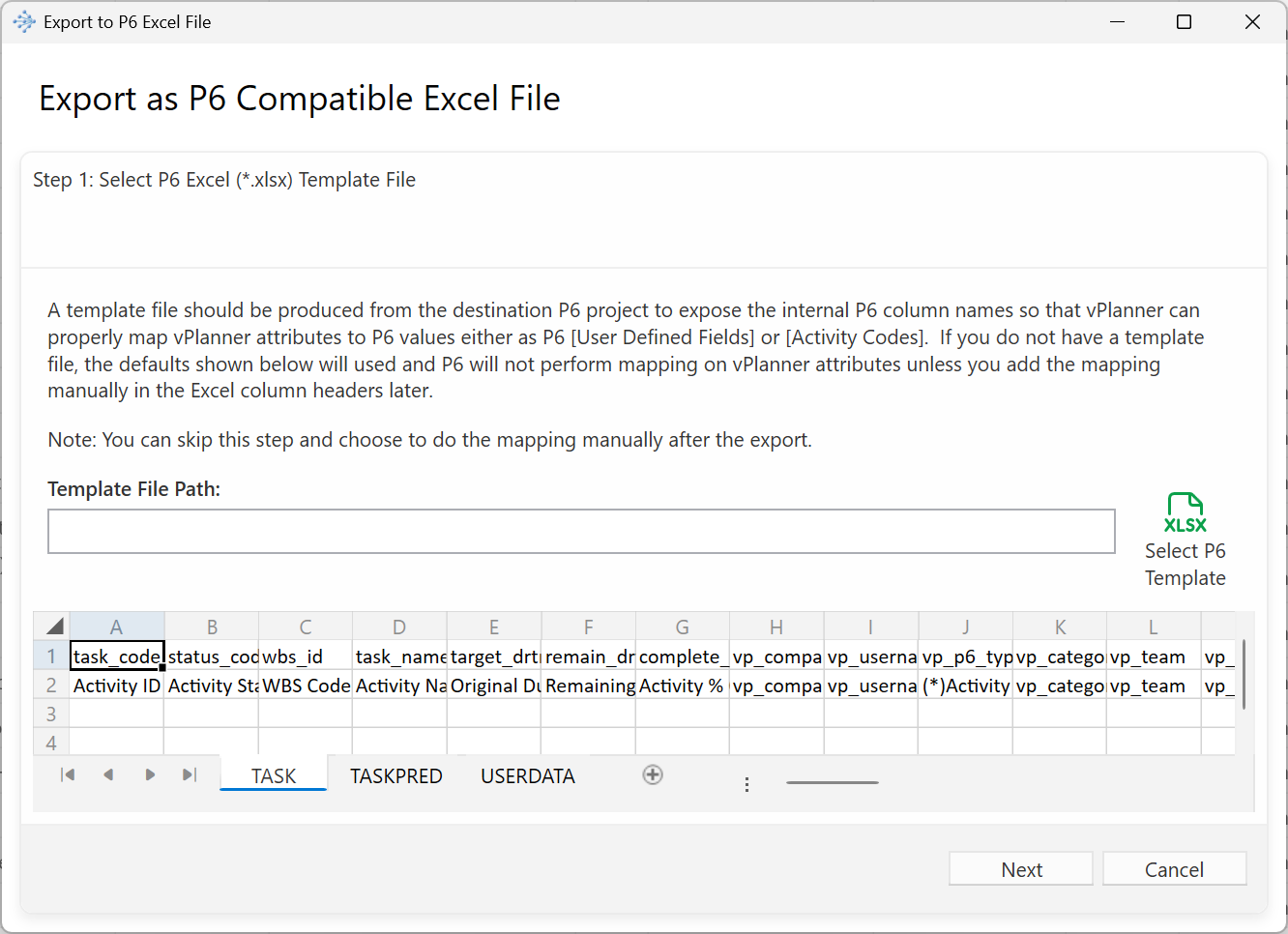
The next screen provides options to control what will be exported to P6.
The timezone and date format options will control how the date information will be converted and formatted. vPlanner dates are stored in Universal Time, so pick the appropriate setting for how your P6 project is configured.
The P6 Project ID is used by vPlanner during the export to prefix the WBS code so that P6 imports those activities under the proper section of the WBS. If you do not specify a value or if you activities do not have a WBS code, vPlanner will insert text in the WBS column to alert you that you should fix those values manually before importing into P6.
Other Settings:
Use External ID when Possible: vPlanner tasks have two IDs an integer which is the default task id and an External-ID. If your project in vPlanner contains tasks that are previously imported from P6, their External-ID will be the P6 Activity ID. During the export, vPlanner will swap the vPlanner ID and replace it with the External ID so that P6 can update those tasks when they are imported to P6.
Skip Finish-to-Start Logic Ties between Original Imported Tasks: when this option is enabled and the export contains unmodified imported tasks, then the logic between those tasks will be skipped during the import. Leaving this option enabled, will maintain your lags that are defined on those activities in P6. If you have converted those tasks to vPlanner native tasks or created native tasks in vPlanner the logic between those tasks will export as Finish-to-Start logic without lags. Note that imported FF, SS, or SF logic imported from P6 will never export back to P6.
Impose P6 Task Dependent Constraints: When this option is enabled, the vPlanner LF date will convert to a P6 "Finish on or before" constraint and the vPlanner FS date will export to a P6 "Start on or after" constraint. This will force P6 to use the vPlanner FS and LF dates as constraints. If the task has no LF date, then the FS constraint will apply.
Create P6 Milestones from vPlanner Milestones: When this option is enabled, a vPlanner Start Date will convert as a "Start On" constraint and the vPlanner Planning Marker and Milestone tasks will convert to Finish On constraints in P6 if they have zero durations. You will still need to convert those to P6 Start Milestone and Finish Milestone types in P6 manually as for whatever reason, P6 will not properly read those types from the Excel file.
Related Articles
V5 Version 5.0.0.232
Current Version 5.0.0.233, 234 New Features/Improvements Version 234 fixes the blank calendars list in the Task Editor and the Filters introduced in V.233. Copy/Paste Improvements: The copy/paste offers more flexibility now as follows. It is now ...V5 Version 5.0.0.245
Version 5.0.0.245 New Features/Improvements InTakt Import: added automatic mapping of phase name and company names from InTakt to vPlanner. The same phase names and company names must exist in vPlanner prior to importing. Bug Fixes: Archiving - the ...V5 Version 5.0.0.171
Current Version 5.0.0.171 New Features/Improvements Gantt Ribbon: Teams Pull down - is now sorted in the Gantt Ribbon. Kanban Ribbon: The filters behavior as been modified so that "Any Task", "My Tasks", "My Company" Tasks will apply as second filter ...V5 Version 5.0.0.254
Version 5.0.0.254 New Features/Improvements OnTrack tasks that are no longer on track will now show a dashed orange border in the Manage view. An OnTrack tasks is no longer on track when its Committed Finish (CF) date is in the past compart to ...V5 Version 5.0.0.255
Version 5.0.0.255 New Features/Improvements It is now possible to de-activate an attribute if it is only assigned to completed tasks (note that active workplan completed tasks are considered active until the workplan is closed). Keep-With-Next tasks ...